If you have lost your Android phone, you can usually try Google's device-finding service before changing passwords or reporting the phone missing. Open Google's official device-finding page, sign in with the Google Account used on the phone, and select the missing device. Depending on the phone's power, connection, account, and settings, you may be able to view its recent or current location, play a sound, secure it, or erase it.
This guide explains how to find your phone through Google and what to do when the service cannot show a location. It covers finding your own device—not secretly monitoring another person's phone.
Research note for editors: Google product naming, requirements, and interface labels should be checked against current official Google documentation before publication. Web research was not available while this draft was prepared.
Google Find My Device is different from tracking detection#
There are two different problems people often describe as “tracking my phone”:
- Finding a lost phone: Google's device-finding service helps you locate or protect a device connected to your Google Account.
- Investigating unwanted tracking: A permission audit or privacy app can help you review which installed apps may access information such as location. That does not locate a lost phone and cannot identify every form of surveillance.
Google's service is intended for finding and managing your own device, or a device you are authorized to manage. Do not use account access, location sharing, or tracking tools to monitor someone without their knowledge and consent.
If you want to review which Android apps can access location, you can also check which Android apps can access location. That is a separate privacy check, not a replacement for Google's lost-device service.
What must be available before Google can find the phone?#
Google may not be able to show a useful location unless several conditions are met. The exact settings and labels can vary by Android version, manufacturer, and account configuration.
Before the phone goes missing, check that:
- A Google Account is signed in on the phone.
- Google's device-finding feature is enabled for the phone.
- The phone can communicate with Google's service, usually through mobile data or Wi-Fi.
- The phone has enough battery to remain on.
- Location services and the relevant device-finding permissions are available.
- The phone is visible in the Google Account's list of devices.
Some newer Android devices may retain or provide a recent location after losing connectivity, but this depends on the device, software version, settings, and Google's current service support. It is safer to treat the displayed position as the latest available information rather than a guaranteed live location.
Check your settings before you lose the phone#
On many Android phones, related controls can be found in Settings, under a section such as Google, Security, Privacy, or Find My Device. Manufacturers may move or rename these controls.
For exact current steps, use Google's official Android help documentation and the settings search box on your phone. Search for terms such as Find My Device, find my phone, or device-finding service.
How to find your phone through Google#
1. Open Google's official device-finding service#
Use a different phone, tablet, or computer and open Google's official device-finding website. Sign in with the same Google Account that was used on the missing Android phone.
Avoid entering your Google password into links received by text message or email. If you are uncertain about a link, open your browser directly and navigate to Google's official account or device-finding pages instead.
2. Select the missing Android phone#
If more than one device is connected to the account, choose the phone you are trying to recover. Review the device name and any displayed battery, connection, or last-seen information before taking action.
If the phone does not appear, check that:
- You signed in to the correct Google Account.
- The phone was previously connected to that account.
- You selected the correct device list or profile.
- The phone was not removed from the account or reset previously.
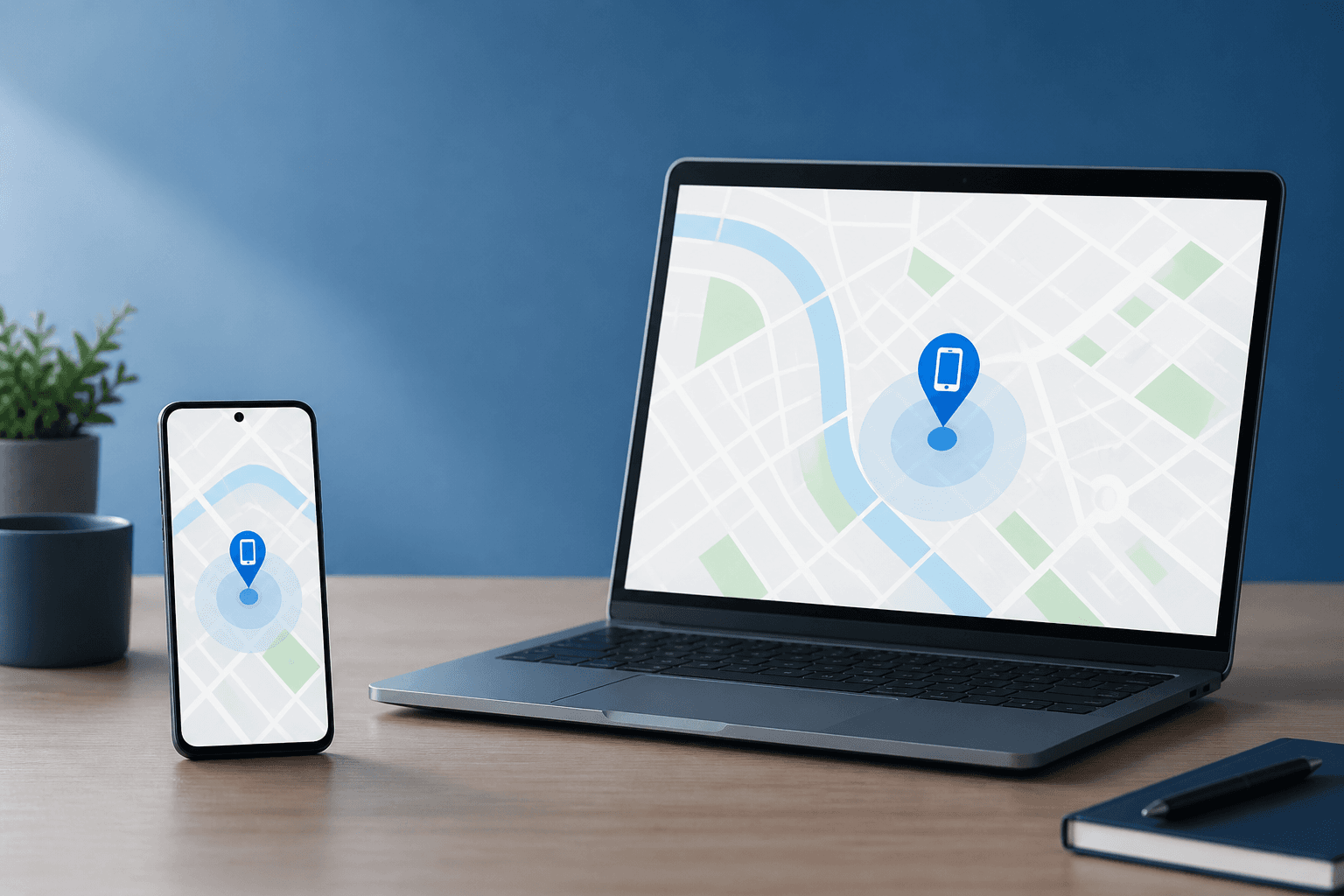
3. Review the displayed location carefully#
The map may show a current position, a recent position, or no position. A location is not necessarily exact. Indoor signal problems, weak connectivity, a powered-off phone, a depleted battery, or delayed reporting can make the result old or inaccurate.
If the location suggests the phone is in a public place, contact the venue or local authorities rather than confronting a stranger. If you believe the phone was stolen, avoid putting yourself at risk to recover it.
4. Play a sound if the phone may be nearby#
Use the sound option when you think the phone is in your home, car, office, or another nearby location. It can help you find a phone hidden under furniture or inside a bag.
The sound feature may not work immediately if the phone is switched off, disconnected, or unable to receive the request. Wait briefly and try again only if the service indicates that the phone remains reachable.
5. Secure the phone#
If you cannot retrieve the phone quickly, use the option to secure or lock it if available. You may be able to add a message or contact number to the lock screen so that an honest finder can reach you.
Choose a contact method that does not reveal more personal information than necessary. For example, a secondary email address may be safer than displaying your home address.
After securing the phone, consider changing important passwords from a trusted device—especially your Google Account, email, banking, payment, and social-media passwords. Also review recent account activity and sign out of sessions you do not recognize.
6. Erase the phone only as a last resort#
Remote erasure is appropriate when protecting the data matters more than recovering the device. Erasing normally removes personal content from the phone, but it may also prevent you from continuing to use the device-finding service to locate it.
Before choosing this option, consider whether you still need the phone's location, whether you have backups, and whether you can secure your accounts another way. Remote erasure may not happen until the phone reconnects, and it does not guarantee that a stolen phone will be returned.
What to do if Google cannot locate your phone#
A missing location does not automatically mean the phone has been hacked or that someone is deliberately hiding it. Common explanations include:
- The battery is empty or the phone is switched off.
- The phone has no Wi-Fi or mobile-data connection.
- The phone is in airplane mode or has a connectivity problem.
- The device is signed in to a different Google Account.
- Device-finding or location settings were not enabled.
- The phone was reset, removed from the account, or not supported by the current service configuration.
- The displayed information is delayed or unavailable temporarily.
Try signing out and back in on the official service, check other Google Accounts you use, and review whether the phone appears in your account's device list. Do not install unknown APK files or disable Android security protections in an attempt to make the phone appear.
If the phone may have been stolen, contact your mobile carrier about blocking the SIM or account, report the loss to the relevant authorities, and secure important online accounts. Your carrier may also be able to help suspend service or identify the device using information such as its IMEI, although carrier procedures vary.
What Google cannot guarantee#
Google's device-finding service cannot guarantee a live, exact location for every phone. It may not work when the phone is off, disconnected, damaged, reset, or configured without the required account and device settings.
A map result also does not prove who has the phone. Treat it as information for deciding on a safe next step, not as permission to enter private property or confront another person.
Finding a lost phone through Google is also not the same as detecting spyware. A phone can be correctly listed in Google's device-finding service while still having an unwanted app, compromised account, or unauthorized location-sharing setting. Those concerns require a separate security and privacy review.
Quick lost-Android-phone checklist#
- Open Google's official device-finding service.
- Sign in to the Google Account used on the missing phone.
- Select the correct device.
- Check whether the location is current or only recently reported.
- Play a sound if the phone may be nearby.
- Secure the phone and add a cautious contact message if needed.
- Change important passwords from a trusted device.
- Contact your carrier if the phone may be stolen.
- Erase the phone only after considering that continued location access may be lost.
Frequently Asked Questions#
Can I find my Android phone through Google without installing an app?#
Often, you can use Google's web-based device-finding service from another browser. Whether the missing phone can be located still depends on its Google Account, device-finding settings, power, connectivity, and service support.
Can Google find my phone if it is turned off?#
A phone that is fully powered off generally cannot send a new live location. Some supported devices and configurations may provide a recent or network-assisted location, but this is not universal. Treat any displayed result as potentially outdated.
Can I track someone else's phone using Google?#
Only use location tools when the other person has knowingly agreed or you are authorized to manage the device. Accessing another person's account or location without permission can violate their privacy and may be unlawful.
Will erasing my Android phone stop me from finding it?#
Remote erasure can remove the information needed for continued device management or location checks. Consider locking the phone and securing your accounts first unless protecting the data is more urgent than recovering the device.
Does finding my phone through Google detect spyware?#
No. Google's lost-device service helps locate or manage a device. It does not prove that the phone is free of spyware, unwanted data collection, unauthorized location sharing, or account compromise.