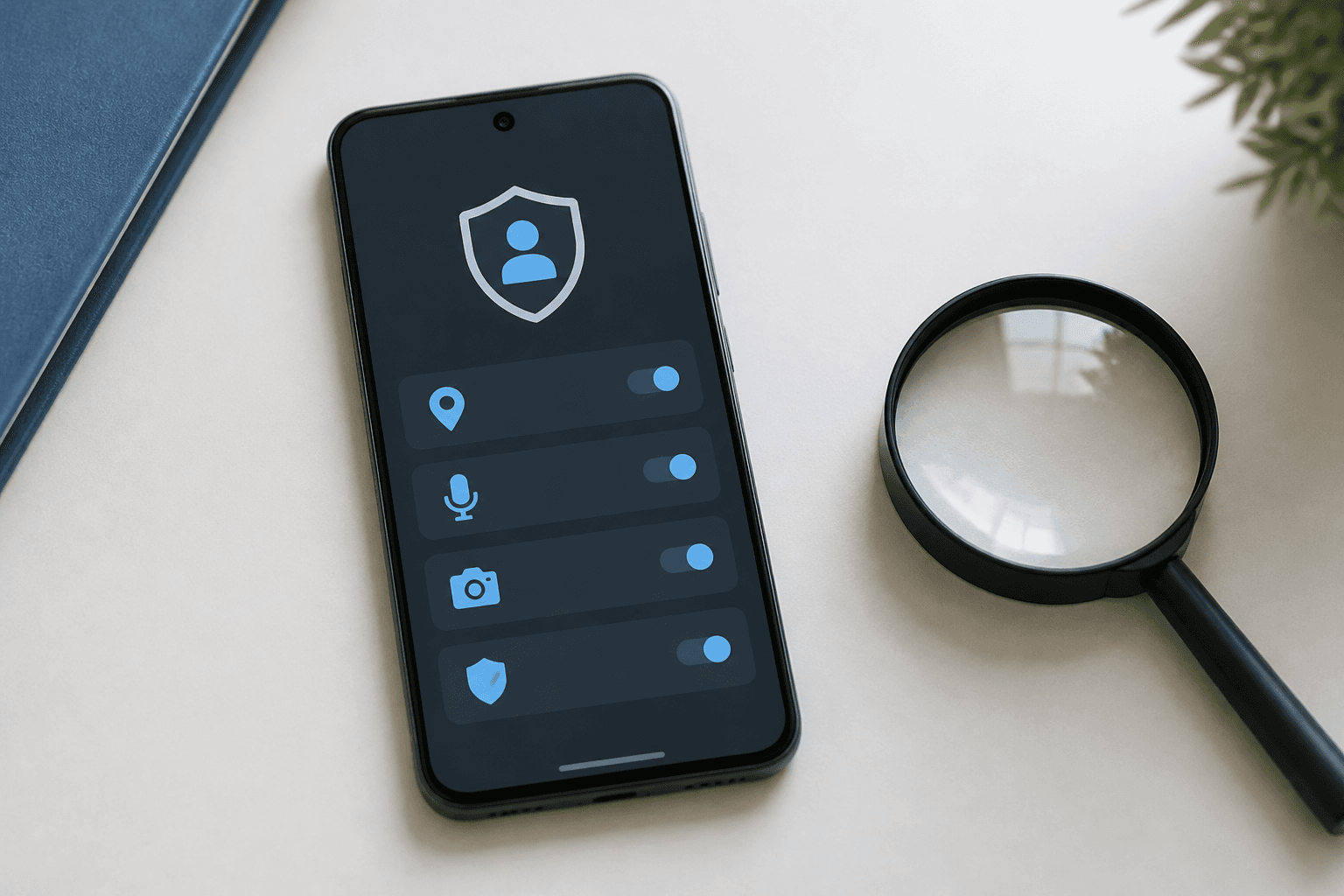
If you are worried about tracking a mobile phone, start by checking which apps and accounts can access its location, when that access is being used, and whether location is being shared with another person. An unfamiliar app with unnecessary background location access is more meaningful than battery drain alone.
Android cannot provide one universal test that proves a phone is completely free of monitoring. Tracking can involve ordinary app permissions, Google account features, location sharing, a compromised account, spyware, or a separate physical tracking device. Use the checks below to narrow down what is actually happening before deleting apps or confronting anyone.
Safety note: If you think someone with access to your phone may be monitoring you, changing settings or removing an app could alert them. If this situation involves domestic abuse, stalking, or personal danger, consider using a safer device to seek help and make a plan before changing the phone.
What “phone tracking” can mean#
The phrase can describe several different situations. They do not all have the same evidence or solution.
An app has location permission#
Many ordinary apps request location access for navigation, weather, delivery, transport, fitness, advertising, or nearby-device features. Permission may be available only while the app is open, or it may allow access in the background.
A location permission does not automatically mean an app is malicious. It does mean the app may be able to obtain location information under the conditions shown by Android.
Someone is using account-based location sharing#
Location may be shared through a Google account feature or another service. This is different from an unknown app secretly reading the phone's sensors. Review location-sharing services and signed-in devices separately from app permissions.
Google can help find a lost device#
Google's device-finding feature is intended to help an account owner locate, secure, or erase a compatible lost device. Seeing a device in a device-finding service does not, by itself, prove that spyware is installed or that someone is secretly tracking you.
If another person controls the Google account signed in to the phone, however, account security becomes an important part of the investigation.
A physical tracker is nearby#
Bluetooth tracking tags and similar devices are separate from app-based phone monitoring. They may be attached to a bag, vehicle, clothing, or another possession. Phone settings for app permissions will not identify every physical tracker.
Spyware or stalkerware is installed#
Stalkerware is software designed to monitor someone without their informed consent. It may attempt to hide, abuse accessibility or device-management features, or collect information through a compromised account. A permission review can reveal clues, but it cannot guarantee detection of every form of spyware.
What Android indicators can and cannot prove#
Android privacy indicators may show when an app is using sensitive hardware such as the microphone or camera. Depending on the Android version and device manufacturer, the exact indicator, history screen, and settings path may differ.
These indicators can help answer questions such as:
- Did an app recently use the microphone or camera?
- Which app currently appears to be using a sensitive sensor?
- Does an app have a permission that it does not seem to need?
They do not prove that every form of tracking has stopped. Location may be obtained in different ways, and an account can expose information without an app continuously using the microphone or camera.
Weak signs are not proof of surveillance#
Battery drain, overheating, high data usage, crashes, or an unfamiliar app can have many ordinary causes, including a poor signal, background updates, a defective battery, a recent system update, or an app with a bug.
Treat these as reasons to investigate, not as proof that someone is tracking the phone. Stronger evidence usually comes from a combination of findings, such as an unfamiliar app with powerful permissions, an account session you do not recognize, or a location-sharing setting you did not enable.
How to check Android apps for tracking access#
The labels below are common, but the route can vary by Android version, manufacturer, and installed software. If a menu is different, use the Settings search field for Permission manager, Location, Privacy dashboard, or App permissions.
1. Review location permissions#
- Open Settings.
- Go to Privacy, Security and privacy, or Location, depending on the device.
- Open Permission manager or the list of apps with location access.
- Review apps allowed to access location all the time, in the background, or while in use.
- Select an app you do not recognize or no longer need.
- Change its permission to a more limited option, such as access only while using the app, or deny access if appropriate.
Pay close attention to apps that:
- You do not remember installing.
- Have background location access without an obvious reason.
- Duplicate a feature already provided by another trusted app.
- Use a vague name or icon that makes identification difficult.
- Were installed around the time the unusual behavior began.
Do not remove a system component merely because its name is unfamiliar. Search for the exact package or app name first, and check whether disabling it could affect calls, updates, accessibility, or device management.
2. Check the Privacy Dashboard or permission history#
Many recent Android devices provide a privacy dashboard or similar history view. It may show recent access to location, the microphone, and the camera.
Look for patterns rather than a single event. For example, a navigation app using location during a trip may be expected. A little-used flashlight app repeatedly accessing location would deserve closer review.
The history is not a complete record of every possible data flow. It also may not look the same on every phone. Use it as one source of evidence alongside app details, account security, and permission settings.
3. Review microphone and camera access#
Open the permission manager and inspect apps with microphone or camera access. Revoke access from apps that do not need it for their main function.
If an indicator appears unexpectedly, tap it when possible to see which app or service is associated with the access. A system service or calling feature may be responsible, so identify the source before deleting anything.
4. Inspect special access and device-control permissions#
Some powerful capabilities are managed outside the ordinary location-permission list. Search Settings for terms such as:
- Accessibility
- Device admin apps
- Notification access
- Display over other apps
- Install unknown apps
- VPN
- Usage access
These permissions are not automatically malicious. Accessibility tools can help people with disabilities, notification access can support wearables, and VPNs can be legitimate privacy or work tools. Investigate any unfamiliar entry and remove access only when you understand what it does and have considered the consequences.
Do not install an unknown APK because a website claims it will find spyware. Sideloaded apps can introduce additional security risks.
5. Review installed apps and recent installations#
Open the installed-apps list and sort it by recently installed or recently updated if your phone provides that option. Compare the list with apps you knowingly use.
An app may have a generic name or may be hidden from the launcher while remaining visible in Settings. That is worth investigating, but it is not conclusive evidence by itself. Some legitimate system services also have technical names or no ordinary launcher icon.
For an unfamiliar app, check:
- Its permissions.
- Its installation source, if shown.
- Its battery and data usage.
- Whether it has accessibility or device-administrator access.
- Whether removing it would affect a work profile or managed device.
How to check Google account and location sharing#
App permissions are only one part of a Google tracking phone investigation. Someone who can sign in to your account may be able to see account information or use services associated with that account, depending on the account's settings and security controls.
Use a trusted device and open your Google Account security settings. Review:
- Devices where the account is signed in.
- Recent security activity.
- Recovery phone numbers and email addresses.
- Third-party apps and services with account access.
- Location-sharing settings and the people or services listed there.
Remove sessions or access that you do not recognize, change the password from a safer device, and enable two-step verification where appropriate. If the account is managed by an employer, school, parent, or another organization, some controls may be administered by that organization.
Do not assume that Google’s lost-device feature is evidence of covert monitoring. Distinguish finding your own lost device through an account you control from another person having unauthorized access to that account.
What to do when you find something suspicious#
Use a proportionate response based on what you found.
If an ordinary app has too much access#
- Revoke unnecessary permissions.
- Update the app through the official app store.
- Uninstall it if you do not need it and removal is safe.
- Check whether the same account is signed in elsewhere.
If you find an unknown account session#
- Take note of the device and time if doing so is safe.
- Change your password using a trusted device.
- Sign out unfamiliar sessions.
- Turn on two-step verification.
- Check recovery details and third-party access.
If you suspect stalkerware or abuse#
Do not immediately confront the suspected person or erase the phone if doing so could increase danger. Removing monitoring software may also remove evidence or alert someone who has physical access to the device.
Consider contacting a domestic-abuse service, stalking-support organization, law-enforcement agency, or qualified mobile-security professional from a safer device. Preserve relevant information only if it is safe to do so. A factory reset can remove some unwanted software, but it is not a universal solution and may destroy evidence without fixing a compromised account.
A practical evidence checklist#
Record findings in a safe place if you can do so without creating additional risk:
- The app or account name.
- The permission or access type.
- The date and time observed.
- Whether the access was expected.
- Any unfamiliar devices or account sessions.
- Recent changes to passwords, recovery details, or location sharing.
- Battery or data symptoms, while treating them as supporting context rather than proof.
This approach is more reliable than relying on a single warning sign or a single detector. No permission audit or scanner can guarantee that a phone is free from surveillance.
Frequently Asked Questions#
Can an Android app track my location without permission?#
An app generally needs an Android location permission to use the device's location through the normal location APIs, but permission behavior and system services vary by Android version. An account compromise, location-sharing service, or physical tracker is a separate possibility and may not appear as an ordinary app with location access.
Does battery drain prove that someone is tracking my phone?#
No. Battery drain can result from poor reception, updates, intensive apps, battery age, or background activity. It becomes more useful as supporting context when combined with an unfamiliar app, unusual permissions, or account activity you do not recognize.
Can Google track my phone if I use Find My Device?#
Google's device-finding service is designed to help an authorized account locate, secure, or erase a compatible lost device. Its existence does not prove covert surveillance. Check which Google account is signed in and review account sessions and location-sharing settings if you are concerned about unauthorized access.
How do I know whether an app is using my location?#
Review the app's location permission in Android Settings and, where available, check the Privacy Dashboard or permission history. The exact menu names vary by device. A permission shows what the app may access; it does not by itself prove that the app is continuously collecting or sending location data.
Should I factory-reset a phone if I suspect spyware?#
Not automatically. A reset may remove some unwanted software, but it can also erase evidence and will not fix an account that another person still controls. If stalking or abuse is possible, seek safety advice first and consider using a safer device before changing the phone.
Final takeaway#
To check whether an Android phone is being tracked, review location and sensitive permissions, inspect privacy history, check special access, and secure the accounts connected to the device. Separate ordinary location features from unauthorized access, and do not treat heat, battery drain, or one unfamiliar app as proof of spyware.
If the situation involves possible stalking or abuse, prioritize personal safety and specialist support over a rushed cleanup.