The practical answer to “how to stop my phone from being tracked” is not a single switch. You need to close the route being used: an app's location permission, active location sharing, access to your online account, monitoring software, or a physical tracker traveling with you.
Start by checking location sharing and your important accounts, then review app permissions and special access. If you think a partner, family member, or another person may retaliate when access disappears, pause before changing anything. Use a safer device to seek help and preserve evidence first.
Battery drain, heat, high data use, or one unfamiliar app does not prove that someone is tracking you. Those signs can have ordinary causes, and the steps below are designed to help you reduce access without assuming the worst.
First, identify which kind of tracking you need to stop#
Different tracking methods require different responses.
| Possible tracking route | Example | Most useful first action | |---|---|---| | App permission | A weather, social, or delivery app can access location in the background | Change its location permission | | Deliberate location sharing | Your live location is shared through Google Maps or a messaging app | Stop sharing inside that service | | Account access | Someone can sign in to an account connected to your phone | Secure the account and remove unfamiliar sessions | | Monitoring software | An app has powerful accessibility, administrator, notification, or location access | Document and review the app safely | | Physical tracker | A Bluetooth tag has been placed in a bag, vehicle, or other possession | Use unknown-tracker alerts and inspect your belongings | | Network-level location | A mobile carrier can determine the phone's approximate network location | Contact the carrier if you suspect unauthorized account access |
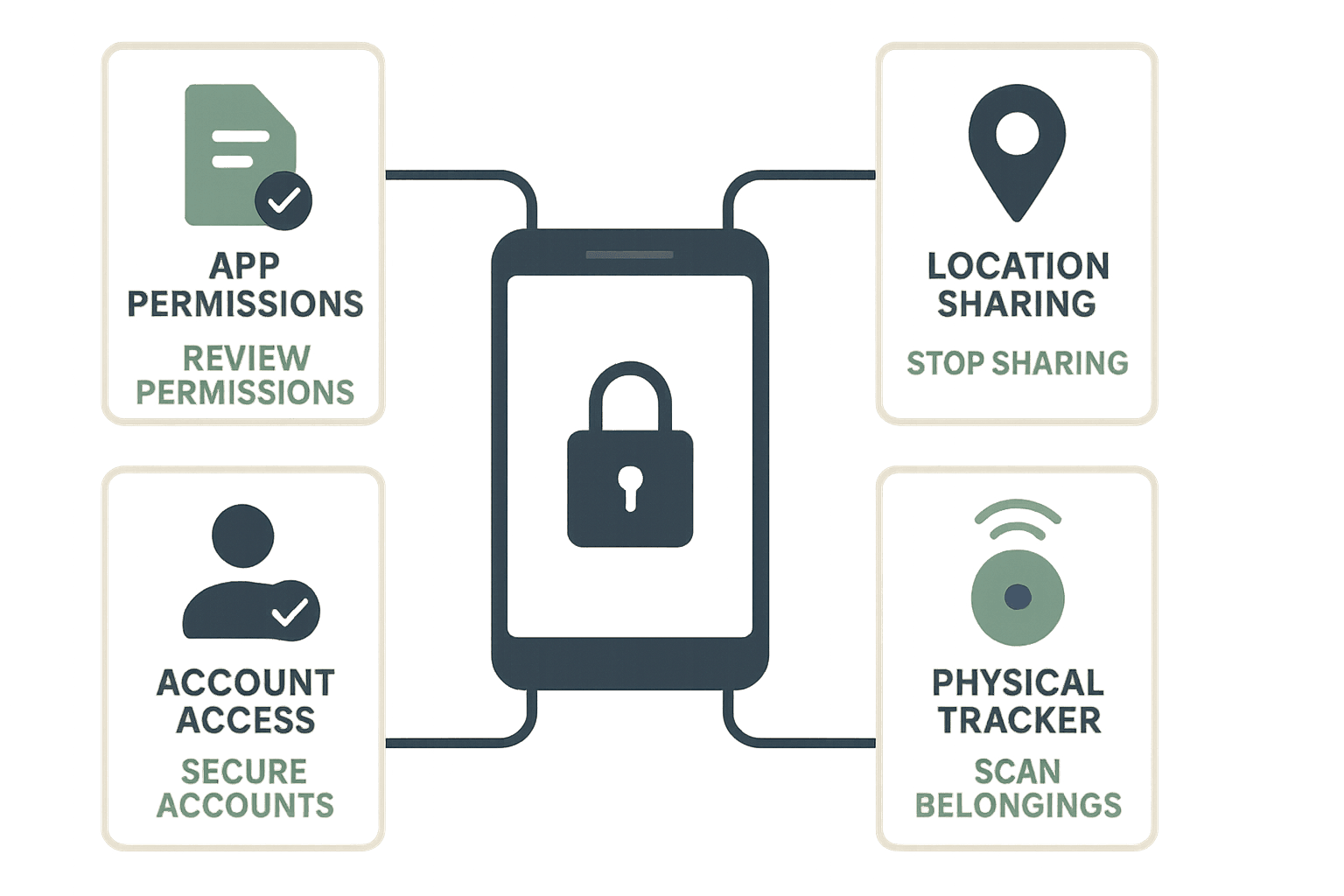
Turning off Android's Location setting mainly addresses location obtained through the phone's location services. It does not automatically end location sharing that has already been recorded, sign other people out of your accounts, remove monitoring software, or locate a physical tag.
1. Review apps with location permission#
On many Android phones, you can begin at Settings > Location > App location permissions or Settings > Security & privacy > Privacy > Permission manager > Location. Names and paths vary by Android version and manufacturer, so use the Settings search box for location permissions if those paths are different on your phone.
Review each app and choose the least access it genuinely needs:
- Don't allow: appropriate when the app does not need your location.
- Ask every time: useful for an app that only occasionally needs it.
- Allow only while using the app: limits access to active use.
- Allow all the time: reserve this for a trusted app whose background function you deliberately use.
Where Android offers a precise location control, consider switching it off when an approximate area is sufficient. A weather app, for example, may not need your exact position to provide a local forecast.
Do not remove access blindly from emergency, accessibility, device-finding, or safety tools that you rely on. If you are unsure why an app needs a permission, review its stated purpose before deciding.
You can also review Android app permissions with the site's permission tool to identify apps that deserve closer attention. A permission audit can reveal access worth reviewing, but it cannot prove who is tracking you or detect every surveillance method.
2. Stop location sharing inside Google Maps and other apps#
An app can have a legitimate location permission while still sharing your position with a person you no longer want to see it. Check sharing separately from permissions.
In Google Maps, the usual route is:
- Open Google Maps.
- Tap your profile picture or account icon.
- Select Location sharing.
- Review every person shown.
- Select a person and stop sharing if they should no longer have access.
Then check other services you use, including:
- Family-location and parental-control apps
- Messaging apps with live-location features
- Fitness and social apps
- Vehicle, wearable, or home-security apps
- Manufacturer-specific family or device-location services
Look for permanent sharing as well as sessions that are supposed to expire. If you belong to a family group, verify which information the organizer and other members can access before leaving the group or changing settings.
Stopping location sharing may be visible to the other person. If that creates a personal-safety risk, make a safety plan before acting.
3. Secure the accounts that can reveal your phone's location#
Someone who can access your Google account may be able to view sensitive account information or use device-location features associated with that account. Changing a location permission will not remove that account access.
From a device you trust:
- Open your Google Account security settings.
- Review Your devices or the list of signed-in devices.
- Sign out devices or sessions you do not recognize.
- Review recent security activity.
- Change your password to a unique password the other person cannot guess.
- Check the recovery email address and phone number.
- Turn on two-step verification or a passkey where appropriate.
- Review third-party apps and services connected to the account.
Apply the same process to accounts for messaging, email, your mobile carrier, social networks, vehicle services, and family-location apps. Protect the email account used for password resets first, because access to that inbox can undermine changes made elsewhere.
If another person manages your phone plan, family account, or device-management profile, some controls may remain outside your account. Contact the provider through a trusted channel if you suspect unauthorized access.
4. Check unfamiliar apps and powerful special access#
A suspicious app does not always look suspicious. It may use a generic name, and legitimate accessibility, parental-control, antivirus, or workplace-management apps can have extensive access for valid reasons.
Begin with Settings > Apps > See all apps and review software you do not remember installing. Before removing anything, note its name and examine its permissions, installation source, battery use, and data use.
Next, search Android Settings for these powerful access categories:
- Accessibility: can let an app observe or interact with on-screen content.
- Device admin apps: can give an app additional device-management powers.
- Notification access: can expose notification contents, including some message previews and security codes.
- Usage access: can reveal which apps you use and when.
- Display over other apps: allows content to appear over another app.
- Install unknown apps: permits installation from outside the normal app store flow.
- VPN: sends network traffic through a configured virtual private network.
Do not disable an access service solely because it appears on one of these lists. Confirm what the app is and whether you rely on it. Workplace-managed phones, accessibility tools, password managers, wearables, and security apps may have legitimate entries.
Run Google Play Protect from the Play Store if it is available on your device, and install Android and app updates. Do not download an unknown “spyware remover” APK or disable Play Protect to install a security tool.
For a more detailed investigation, follow the guide to checking for spyware and suspicious apps on Android. No scan or checklist can guarantee that a phone is free from monitoring.
5. Check for a physical Bluetooth tracker#
A person does not need access to your phone to place a compatible tracking tag in a bag, vehicle, coat, or other item that travels with you.
On supported Android devices, search Settings for Unknown tracker alerts. It may appear under Safety & emergency or another safety section. Review any alert and use the available option to scan manually if your phone offers one.
If Android reports a tracker moving with you:
- Save screenshots of the warning and any map or identifier shown.
- Use the sound or locating option only if it is safe to do so.
- Check items that regularly travel with you.
- Follow the on-screen instructions for identifying and disabling the device.
- Contact local law enforcement or a support service if you feel unsafe.
A manual Bluetooth scan is not proof that no tracker exists. Detection depends on the tracker's technology, whether it is transmitting, device compatibility, and the alert system's ability to observe it.
Do not confront a suspected person or travel to an isolated place to search for a device. If you find a tracker and need evidence, avoid destroying it before receiving appropriate advice.
6. Understand what turning off Location actually does#
Turning off Location can reduce access to Android's location services, but it does not make the phone untrackable.
It may limit:
- Apps requesting GPS or other device-derived location through normal Android controls
- Location-dependent features while the setting remains off
- New location records generated by some apps
It does not necessarily stop:
- Someone who is already signed in to one of your accounts
- A monitoring app using other information or powerful access
- A physical tracker hidden in your belongings
- A carrier from determining approximate network location
- Websites and services from estimating a broad area from an IP address
- Previously stored location history or messages containing your location
Airplane mode is not a complete long-term solution either. Wireless features may be turned back on separately, and going offline does not remove account access, stored information, installed apps, or physical trackers.
7. Preserve evidence when immediate removal could be unsafe#
Removing an app, ending location sharing, changing a password, or disabling a tracker may alert the person responsible. That matters when the suspected monitoring is connected to stalking, coercive control, domestic abuse, or another safety threat.
Before making changes, consider documenting:
- The app's name and app-information screen
- Permissions and special access it holds
- Location-sharing recipients
- Signed-in devices and recent account activity
- Unknown-tracker warnings
- Security emails, messages, dates, and times
Store copies somewhere the suspected person cannot access. If your phone or cloud account may be monitored, use a different trusted device to contact a domestic-abuse service, stalking support organization, attorney, or law-enforcement agency as appropriate to your situation.
A factory reset can remove many installed apps, but it should not be your first or only response. It will not secure a compromised online account, end every cloud-based sharing arrangement, or remove a physical tracker. If you eventually reset the phone, secure your accounts first and be careful not to restore an unwanted app or configuration from backup.
A practical order of action#
If there is no immediate safety risk, work through these steps in order:
- Check active location sharing in Google Maps and other apps.
- Secure your email, Google account, carrier account, and location-service accounts.
- Review app location permissions.
- Inspect installed apps and powerful special access.
- Run Play Protect and install trusted updates.
- Check unknown-tracker alerts and your belongings.
- Document suspicious findings before removing them.
- Consider a factory reset only after addressing accounts, sharing, and backups.
The goal is not to make a connected phone impossible to locate. That is generally unrealistic. The goal is to remove access you did not authorize, reduce unnecessary collection, and preserve the services you intentionally use.
Frequently Asked Questions#
Does turning off GPS stop someone from tracking my phone?#
Not by itself. It can limit normal access to device-derived location, but it does not sign people out of your accounts, stop all network-based location estimates, remove monitoring software, or detect a physical tracker.
Can airplane mode block phone tracking?#
Airplane mode temporarily disconnects some wireless radios, but it is not a complete remedy. Wi-Fi or Bluetooth may be enabled separately, and airplane mode does not revoke account access, erase stored location data, or remove an installed app or physical tracker.
Will a factory reset remove phone tracking?#
A reset can remove many installed apps and local settings. It does not automatically secure a compromised account, stop location sharing configured in an online service, fix unauthorized carrier-account access, or remove a tracker hidden in your belongings.
Can someone track my live location with only my phone number?#
A phone number alone generally does not give an ordinary person a live map of your location. However, it can be used for phishing, account-recovery attacks, unwanted sharing requests, or attempts to access a carrier account. Protect related accounts and never provide verification codes to another person.
Should I delete a suspicious app immediately?#
Not always. First document the app and its access if doing so is safe. Removing it may destroy useful evidence or notify someone who expects the app to remain active. If retaliation is possible, use another device to seek safety advice before making changes.